If you need to merge PDF files free of charge, the good news is that you don’t have to put up with watermarks or hand over a credit card. The less good news is that every “free” merger has its own catch, and they aren’t the same catch. So instead of repeating marketing claims, I ran the same two files through three popular browser tools and wrote down what happened.
How I tested
I used two test PDFs, document-A.pdf (328,931 bytes) and document-B.pdf (329,066 bytes), three pages each. For every tool I:
- Opened the merge page without logging in or creating an account.
- Uploaded both files and kept the A-then-B order.
- Ran the merge, downloaded the result and checked its size and page count on my computer.
- Looked for watermarks, limits and any sign-up prompts.
All tests were done on October 28, 2026. I also tried Adobe Acrobat’s online merger, but my test browser got an “Access Denied” page, so for Adobe I’m relying on its official page rather than hands-on use.
Quick comparison: merge PDF files free
| Tool | Key Feature | Free Limit | Best For |
|---|---|---|---|
| iLovePDF | Fast server merge, drag-to-reorder thumbnails | 25 Merge PDF tasks on the free plan, 100 MB per task | Everyday merges where you want a clean, simple flow |
| PDFgear (online) | Merges locally in your browser | No stated file or size cap, no account | Private documents |
| Smallpdf | Polished result page with follow-up tools | A limited free plan | One-off merges when you also want to compress or sign |
| Adobe Acrobat online | Up to 100 files, 1,500 pages total | Merge is free; sign-in needed to save or share | People already in the Adobe ecosystem |
All three tools I tested produced a 6-page file of roughly the same size as the two inputs combined. None added a watermark. The differences are in workflow, limits and where your file goes.
1. iLovePDF: the quickest round trip
iLovePDF had the most straightforward merge screen of the three. I uploaded both files in one go, the thumbnails showed up side by side, and a big red Merge PDF button sat in the corner.
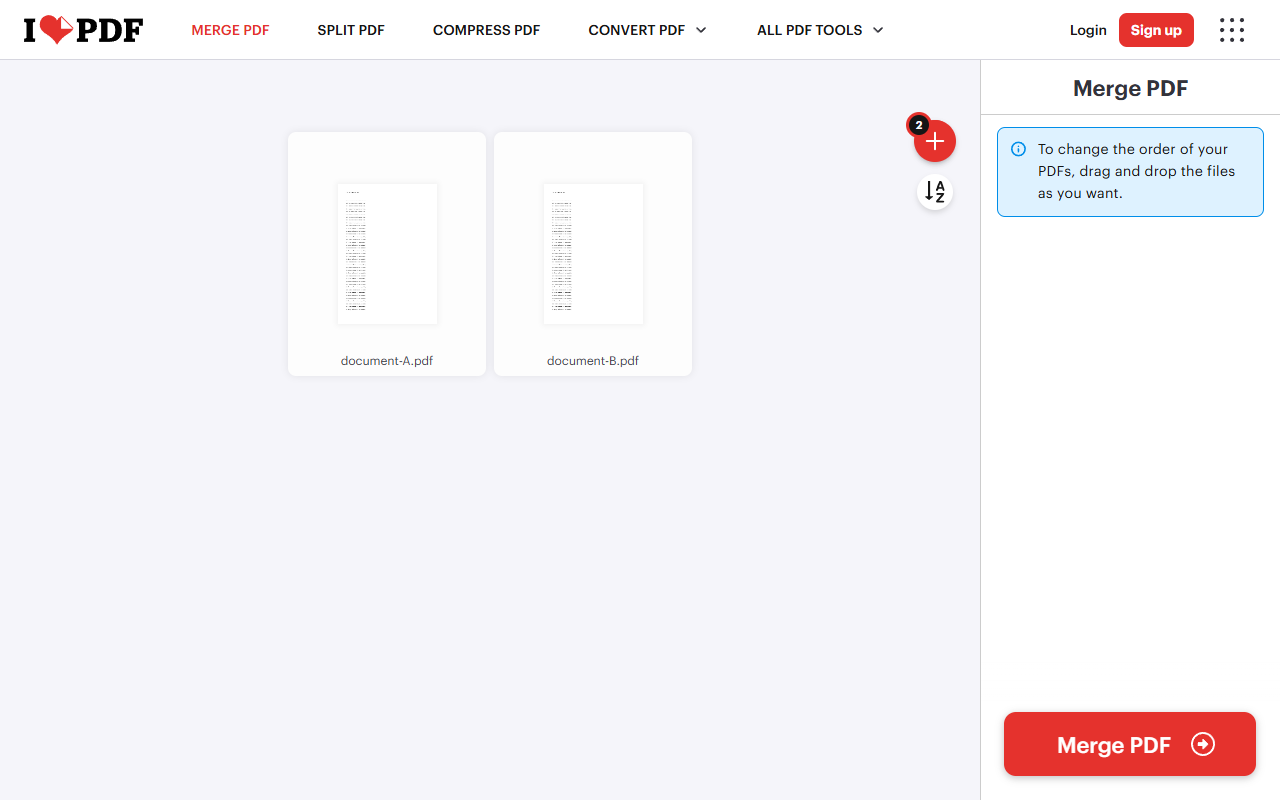
From clicking Merge PDF to landing on the download page took about 3 seconds. The output, document-A_merged.pdf, came out at 657,591 bytes with all six pages in order. There was a Sign up button in the header, but nothing stopped me from downloading.
The trade-offs:
- According to its pricing page, the free plan covers 25 Merge PDF tasks and a 100 MB file size per task. That’s plenty for most people.
- Other iLovePDF tools are far tighter on the free plan. Compress PDF, for instance, is listed at 2 tasks, so don’t assume the whole suite is as generous as Merge.
- Your files go to iLovePDF’s servers. The download page said they’re deleted automatically after 2 hours.
If you merge a few times a week and don’t care where the processing happens, I’d reach for iLovePDF first.
2. PDFgear online: the private option
PDFgear’s merge page worked a little differently. After uploading, each file appeared as a stack labeled “3 Pages,” and there was a Show Pages toggle if you want to rearrange individual pages rather than whole files. I clicked Export, and the “Your file is ready” screen appeared in about 3.4 seconds.
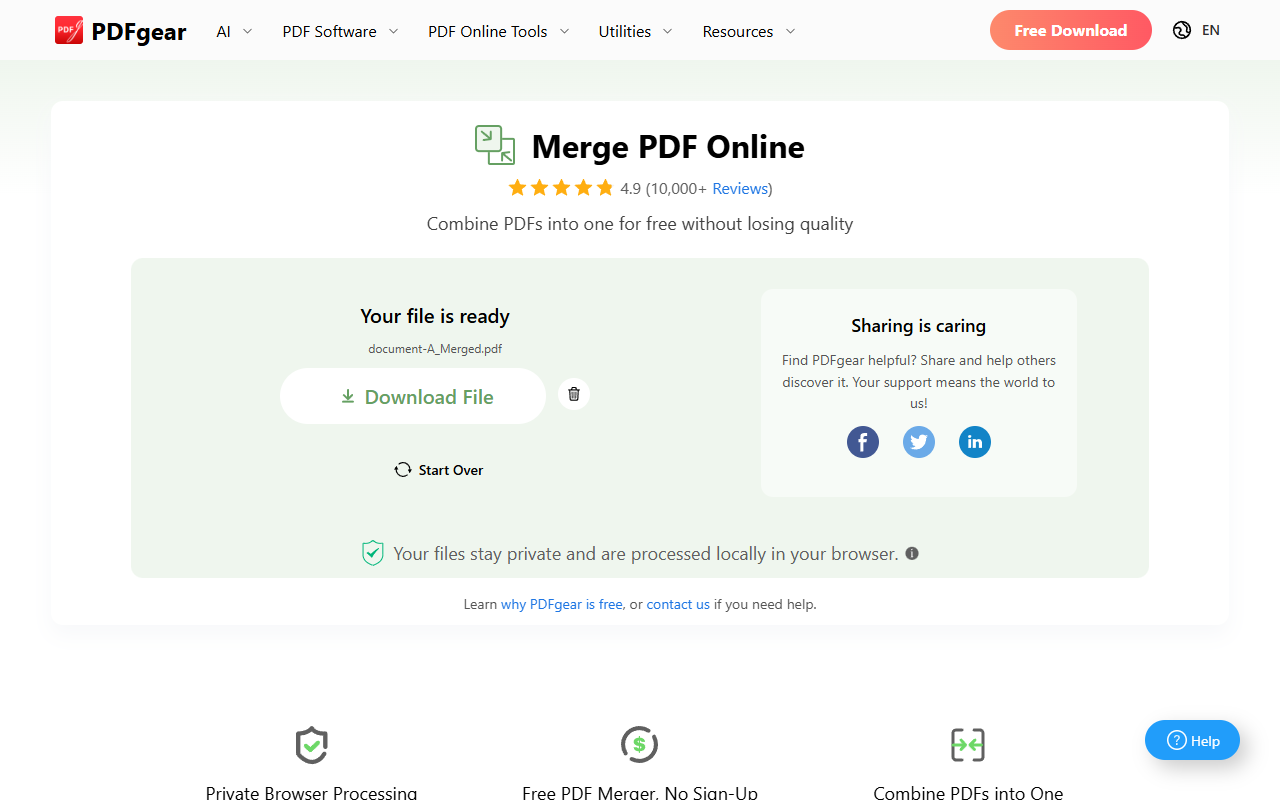
The detail I liked most is the line under the download button: “Your files stay private and are processed locally in your browser.” The download link was a local browser link rather than a server URL, which backs that up. The merged file was 656,579 bytes and had six pages.
PDFgear’s page says there’s no account or payment needed, and it doesn’t list a file size or file count limit. It does warn that large PDFs and long file lists need more device memory and time, which makes sense if your own computer is doing the work. The one annoyance is that the site keeps nudging you toward its desktop app with a “Free Download” button. You don’t need it to merge.
For contracts, IDs or bank statements, this is the online tool I’d pick.
3. Smallpdf: polished, but with a cap
Smallpdf has the nicest-looking interface of the three, though it took me an extra step: its file picker only accepted one file at a time, so I added document-A and then document-B. After clicking Finish, the result screen showed “Done” with “658 kB – 6 pages” within about 10 seconds.
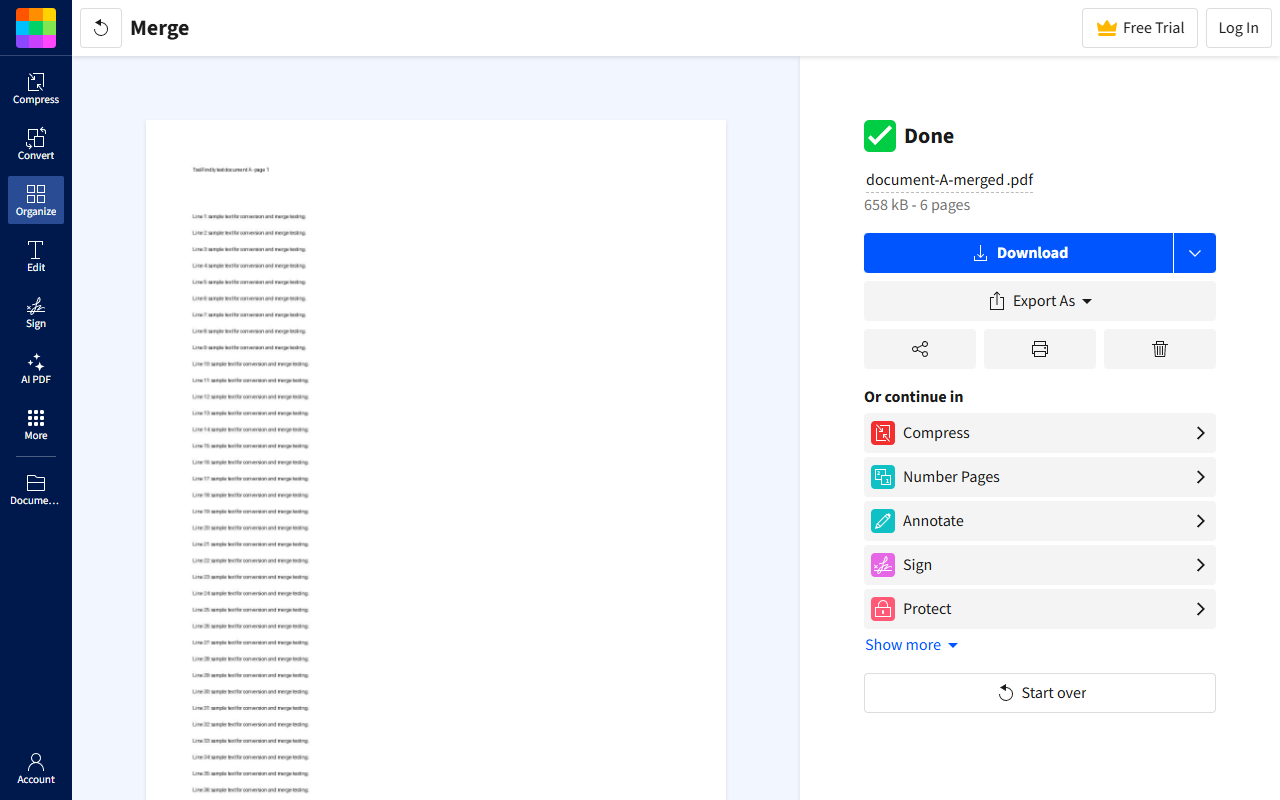
The downloaded file was 657,505 bytes. No watermark, and no forced login, although a Free Trial button was always in view. The result page offers shortcuts to compress, number pages, sign or protect the file, which is handy if merging is only step one.
The catch is the free plan. Smallpdf runs a limited free plan, and third-party reviews describe a small daily task cap, but I couldn’t confirm the exact rules on an official page. I only ran one merge, so I didn’t hit any limit myself. Smallpdf’s merge page says uploaded files are deleted from its servers after one hour.
What about Adobe Acrobat online?
I couldn’t test it, so here’s only what Adobe’s merge page says: you can combine up to 100 files, each up to 500 pages, into a single PDF of up to 1,500 pages. Your file is deleted unless you sign in to save it, and sharing a link or reorganizing pages afterward requires signing in. If you already have an Adobe account, it’s a reasonable choice for very large jobs.
Privacy: which tool should handle sensitive files?
Of the online tools above, every one except PDFgear uploads your files to someone else’s server. For class notes or a portfolio, that’s fine. For anything with account numbers or ID scans, I’d keep the file on my machine. Two ways to do that:
- PDFgear online, which processes the merge in your browser.
- PDFsam Basic, a free, open-source desktop app for Windows, macOS and Linux. It does mean installing software, but your files never leave your computer.
Merging is often one step in a bigger job. If you’re putting together a visual portfolio, you may want to clean up the images first with a free background remover before turning them into PDF pages. And if you’re recording a walkthrough of the final document for a client, our list of free screen recorders with no watermark covers that part.
Which one should you use?
Short version: iLovePDF for speed and simplicity, PDFgear when privacy matters, and Smallpdf when you want to merge and then immediately compress or sign. All three gave me a clean, watermark-free 6-page file without an account. Adobe is worth a look for huge merges if you don’t mind signing in.
Frequently Asked Questions (FAQ)
Can I merge PDF files free without a watermark?
Yes. In my tests, iLovePDF, PDFgear and Smallpdf all produced merged files with no watermark and didn’t ask me to sign up before downloading.
Does merging PDFs reduce quality?
It shouldn’t, since a merge normally combines existing pages rather than re-rendering them. My merged outputs were all within about 1.5 KB of the two input files’ combined size, so there’s no sign of heavy recompression.
How do I change the order of files before merging?
Drag the thumbnails into the order you want before clicking merge. iLovePDF also has an A-Z sort button, and PDFgear’s Show Pages toggle lets you move individual pages, not just whole files.
Is it safe to merge confidential PDFs online?
It depends on the tool. iLovePDF and Smallpdf upload files to their servers and say they delete them after 2 hours and 1 hour respectively. PDFgear’s online merger processes files in your browser, and PDFsam Basic works fully offline, so those are safer for sensitive documents.