A while back I needed to record a quick walkthrough for a friend who kept getting stuck on the same setting. I didn’t want to pay for anything, and I really didn’t want a giant watermark stamped across the middle of the video. That small task sent me down a rabbit hole of testing almost every free screen recorder I could find.
Here’s the good news: you don’t need to spend a cent to get clean, watermark-free recordings. The catch is that “free” means very different things from one tool to the next. Some are fully open source, some are built right into your operating system, and a few are only “free” until you hit a hidden limit. Below are the seven I keep coming back to, with honest notes on where each one shines and where it gets annoying.
How I picked these
I cared about three things you actually notice when you just want to hit record: no watermark on the final video, no hard time limit (or at least a generous one), and an export you can use anywhere. I also leaned toward tools that are genuinely free rather than a 7-day trial in disguise. I’ve flagged the catches for each one.
1. OBS Studio – the most powerful free option
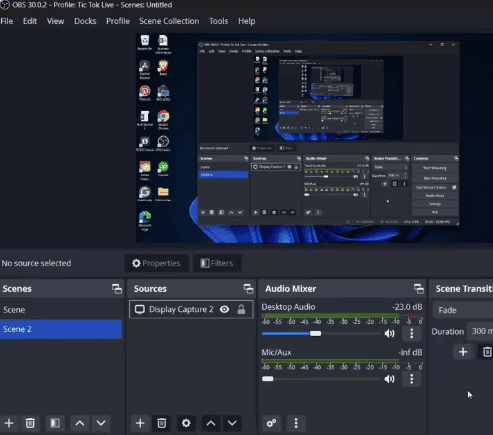
OBS Studio is the one I reach for when a recording actually matters. It’s open source, completely free, runs on Windows, Mac, and Linux, and there’s no watermark or time limit, ever. You can capture your whole screen, a single window, or a custom region, and drop your webcam and mic on top.
The trade-off is the learning curve. The first time I opened it, the black canvas and the talk of “scenes” and “sources” was intimidating. Give it twenty minutes, though, and it clicks. For anything longer than a couple of minutes, OBS is my default.
- Best for: tutorials, long recordings, streaming
- Watch out for: overkill if you only need a 30-second clip
2. ShareX – a power-user capture toolkit (Windows)
ShareX is another free, open-source favorite, but Windows only. It does screenshots, screen recording, and even GIF capture, all with no watermark. What I love is how fast it is once you set your hotkeys. What I don’t love is the interface – it’s busy and a little intimidating for a first-timer. If you’re comfortable poking around settings, it’s fantastic.
- Best for: Windows users who also take a lot of screenshots
- Watch out for: a cluttered menu that takes time to learn
3. Xbox Game Bar – fastest for a quick clip (Windows, built in)
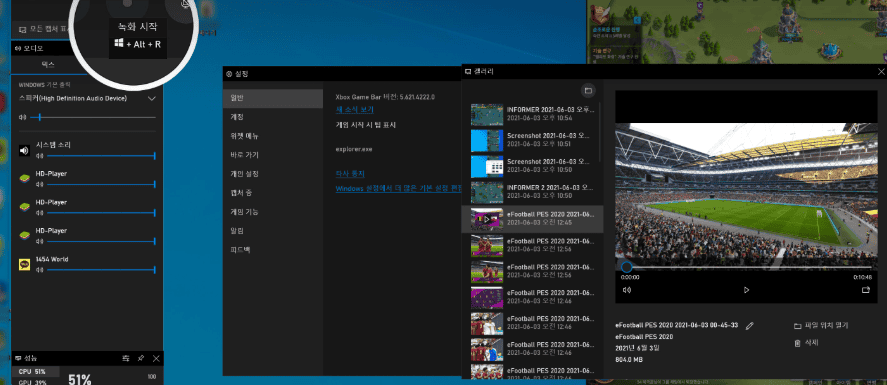
If you’re on Windows 10 or 11, you already have a screen recorder installed. Press Win + G, hit record, and you’re done – no install, no watermark. I use it when I just want to grab something quickly and don’t care about fancy options. The limitation is that it’s mainly built for capturing apps and games, so recording the desktop or File Explorer can be hit or miss.
- Best for: instant, no-setup clips of a single app
- Watch out for: can’t always record the desktop or file explorer
4. QuickTime Player – dead simple on a Mac
Mac users have it just as easy. QuickTime Player (already on your Mac) does File > New Screen Recording, and you get a clean, watermark-free video in seconds. It’s bare-bones – no editing, and capturing system audio needs an extra step – but for a quick, no-fuss recording it’s hard to beat something that’s already installed.
- Best for: Mac users who want zero setup
- Watch out for: no built-in editing, fiddly system audio
5. Screenity – record right inside Chrome
Screenity is a free, open-source Chrome extension, and it surprised me. It records a tab, your whole screen, or your webcam with no watermark and no time limit, plus you can draw on the screen while recording. If you live in the browser, it’s the most frictionless option on this list.
- Best for: browser-based demos and annotated walkthroughs
- Watch out for: heavy recordings can strain an older laptop
6. Microsoft Clipchamp – record and edit in one place
Clipchamp is Microsoft’s free recorder and editor. You can capture your screen and webcam, then trim and tidy the clip in the same window, and export in 1080p without a watermark. It needs a free Microsoft account, but if you want to record and lightly edit without juggling two apps, it’s genuinely handy.
- Best for: recording plus quick edits in one tool
- Watch out for: requires a Microsoft account and sign-in
7. Loom – best when you need to share instantly
Loom is the one I send to people when speed matters. You record your screen with a little webcam bubble, and the moment you stop, you get a shareable link – no exporting, no uploading. The free plan is generous but does have caps on video length and how many videos you can keep, and those limits change over time, so check the current ones before you rely on it.
- Best for: quick async messages and instant sharing
- Watch out for: free-plan limits that change – confirm before depending on it
Quick comparison
| Tool | Platform | Best for |
|---|---|---|
| OBS Studio | Win / Mac / Linux | Serious, longer recordings |
| ShareX | Windows | Screenshots + recording |
| Xbox Game Bar | Windows | Instant app clips |
| QuickTime | Mac | Zero-setup on a Mac |
| Screenity | Chrome | Browser demos |
| Clipchamp | Win / Web | Record + edit |
| Loom | Win / Mac / Web | Instant sharing |
So which one should you use?
If I had to pick just one, it’s OBS Studio – it’s free forever, has no limits, and grows with you. But honestly, the best choice depends on what you’re doing. Want a clip in five seconds? Use the recorder already on your computer (Xbox Game Bar on Windows, QuickTime on Mac). Live in the browser? Screenity. Need to send something fast? Loom. Start with the simplest tool that fits the job, and only move up when you actually feel the limits.
FAQ
Are these really free with no watermark?
OBS, ShareX, Xbox Game Bar, QuickTime, and Screenity are free with no watermark and no time limit. Clipchamp and Loom are free but have account requirements or plan limits, which I’ve noted above.
Which is easiest for a complete beginner?
The recorder already built into your system – Xbox Game Bar on Windows or QuickTime on Mac. There’s nothing to install and almost nothing to learn.
Whatever you pick, you don’t need a paid app to make clean recordings. Try one, record something small today, and you’ll quickly figure out which fits the way you work.
Recording on Windows 11 specifically? We put together a step-by-step guide: how to record your screen on Windows 11 for free.
핑백: How to Remove a Background From an Image for Free (2026) - ToolFindly
핑백: 5 Best Free AI Chatbots for Everyday Productivity (2026) - ToolFindly
핑백: 5 Best Free AI Voice Generators for Content Creators (2026) - ToolFindly
핑백: 5 Best Free Note-Taking Apps for Students and Professionals (2026) - ToolFindly
핑백: 5 Best Free Password Managers to Keep Your Data Safe (2026) - ToolFindly
핑백: 5 Best Free Video Editors for Beginners (No Watermark!) - ToolFindly